
A phone that runs out before the end of the day can disrupt navigation, messages and plans. The cause is not always a worn-out battery: a bright screen, a long video call, weak reception or a freshly installed update can change how quickly the charge falls. Start with the device's own battery report and try one adjustment at a time. That makes it easier to tell which change helps on your phone, rather than giving up features you rely on for no clear benefit.
This guide ranks ten approaches by how broadly useful they are, how easily a reader can try them, and how well they help explain or reduce everyday drain. The order is editorial judgment, not a laboratory test. A traveller in a coverage gap may put airplane mode first; someone whose battery health has deteriorated may need a service assessment instead of another setting. The list focuses on Android and iPhone examples documented by Google and Apple, checked on 9 November 2026. Menu names and feature availability vary by model, manufacturer, software version, region and account.
First distinguish two meanings of battery life. Runtime is the time between charges, which depends on your use and environment. Battery health concerns the battery's longer-term ability to hold charge as it chemically ages. A setting that saves energy this afternoon does not necessarily reverse wear, and a charging limit that can reduce time spent at a high charge may leave less energy available for a long journey. Neither manufacturer promises that a particular step will add a fixed number of hours for every person.
Use the battery screen as evidence, not a verdict. A navigation app can reasonably appear near the top after a long trip, and music can use background power because you asked it to keep playing. Compare usage with what you were doing and note any background activity that surprises you. A percentage in the list describes the device's reported usage for a period; it does not automatically identify a faulty app. Restricting a useful app can delay its alerts, downloads or synchronization. Change a single setting, observe another comparable day and restore features you need.
Screen and connectivity choices are also contextual. Turning the screen off sooner can save power while the phone sits idle, but an inconveniently short timeout may interfere with reading. A strong trusted Wi-Fi connection can be useful when mobile reception is poor. Airplane mode is an option when you deliberately do not need cellular service, but it can prevent calls and messages, including emergency contact when unavailable. Know how to restore connectivity and follow local rules before using it.
A temporary increase in battery use after an update is not by itself proof that the update is defective. Apple says background work may continue after an iOS update and recommends waiting a few days before checking again. Keep security updates current, check the manufacturer's guidance and investigate persistent issues with the device maker or a qualified repair provider. A swollen, damaged or unusually hot battery requires appropriate service rather than experimentation.
For broader ways to use the device, see our useful smartphone features and account security habits. Which adjustment matters most will depend on your phone and routine; the top choice is the one that helps you identify the cause before making unnecessary sacrifices.
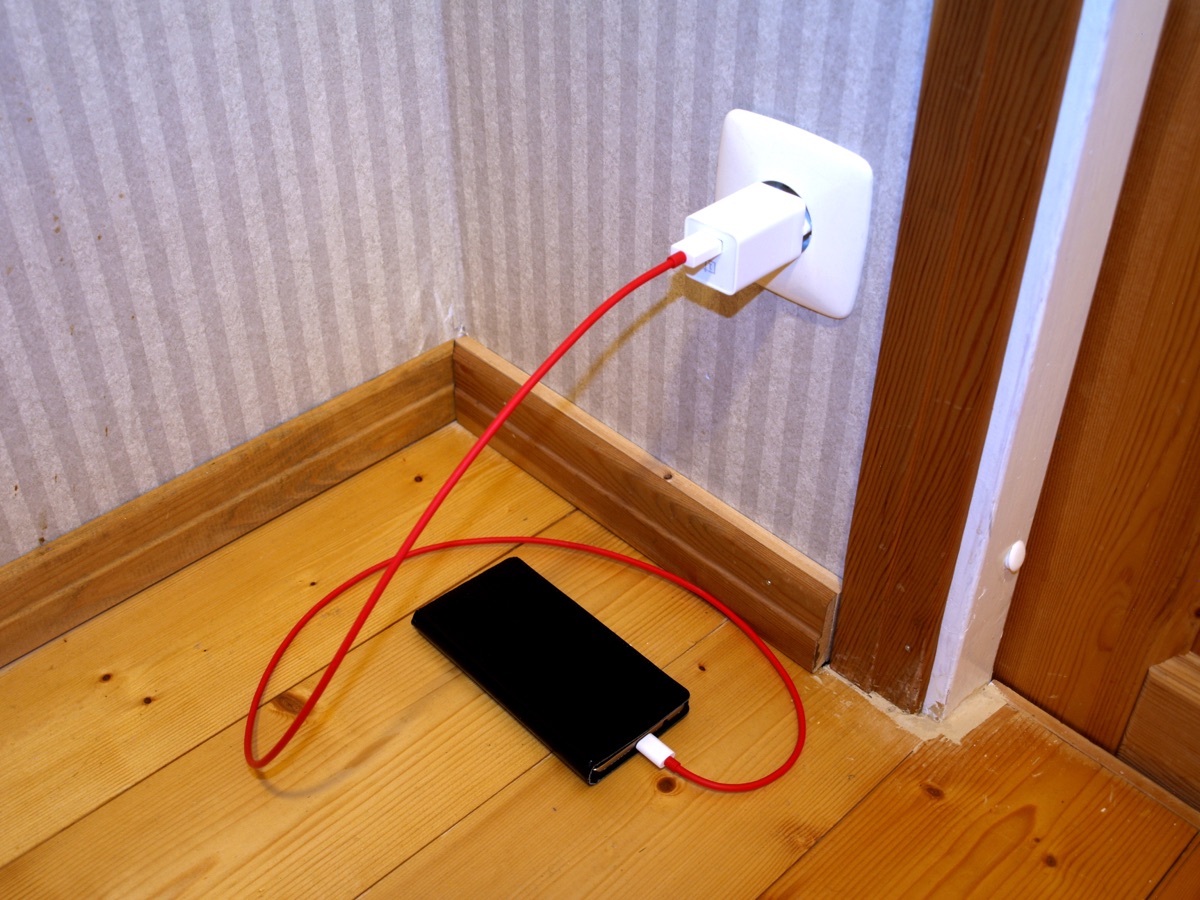
Photo: Santeri Viinamäki · CC BY-SA 4.0 · 2016-09-29. Resized and recompressed.
